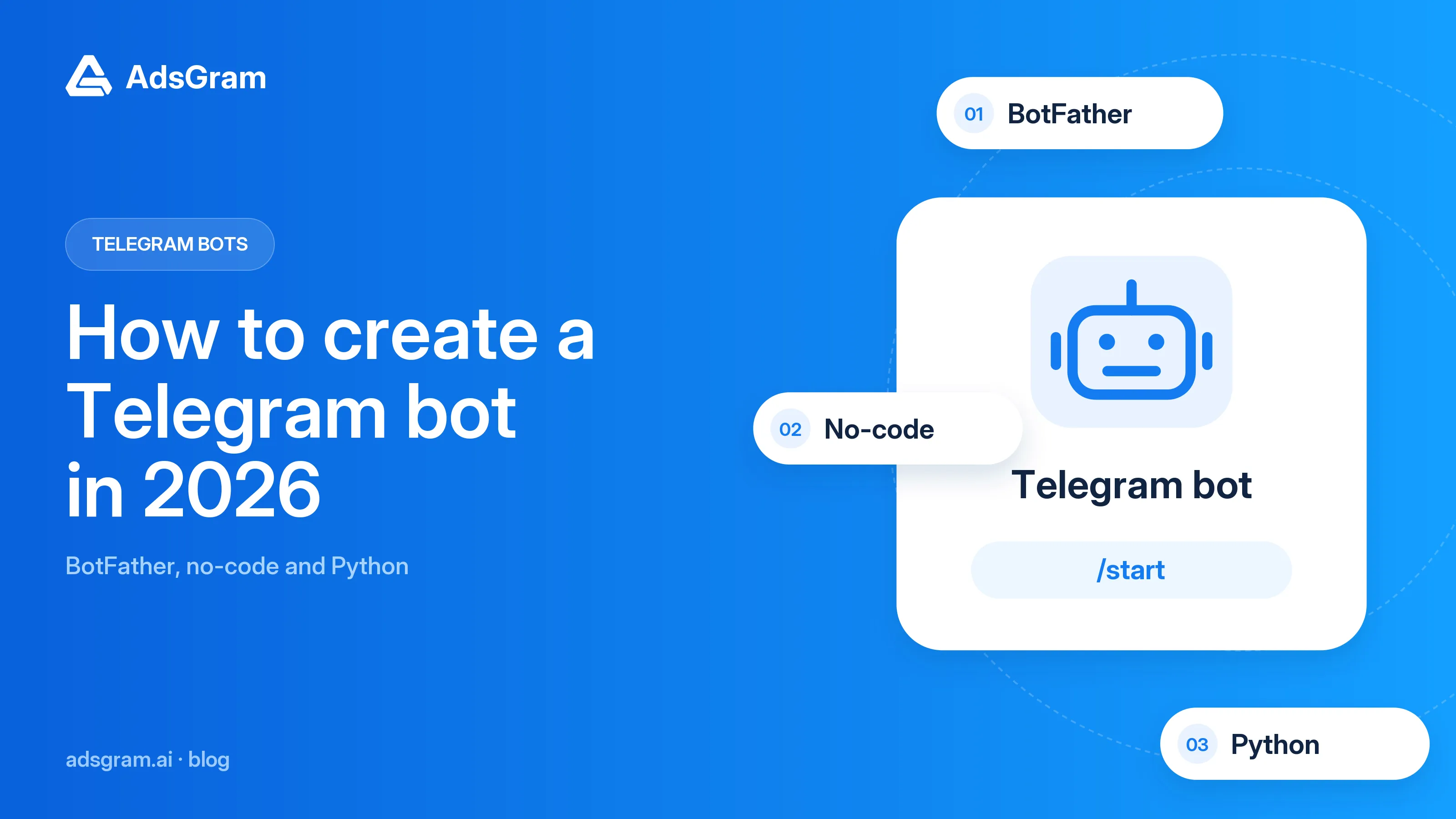
A Telegram bot can answer questions, handle commands and connect a chat to other services. Creating one starts with BotFather, but making it respond requires a no-code workflow or a program that processes messages.
This guide explains how to create a Telegram bot in 2026: register an account, get a token, set up replies without coding or with Python, and fix common setup errors. We’ll start with BotFather, then walk through both ways to build a working bot.
TL;DR
Register the bot through the official @BotFather account and keep its access token private.
A no-code workflow handles simple replies; Python gives you control over custom logic.
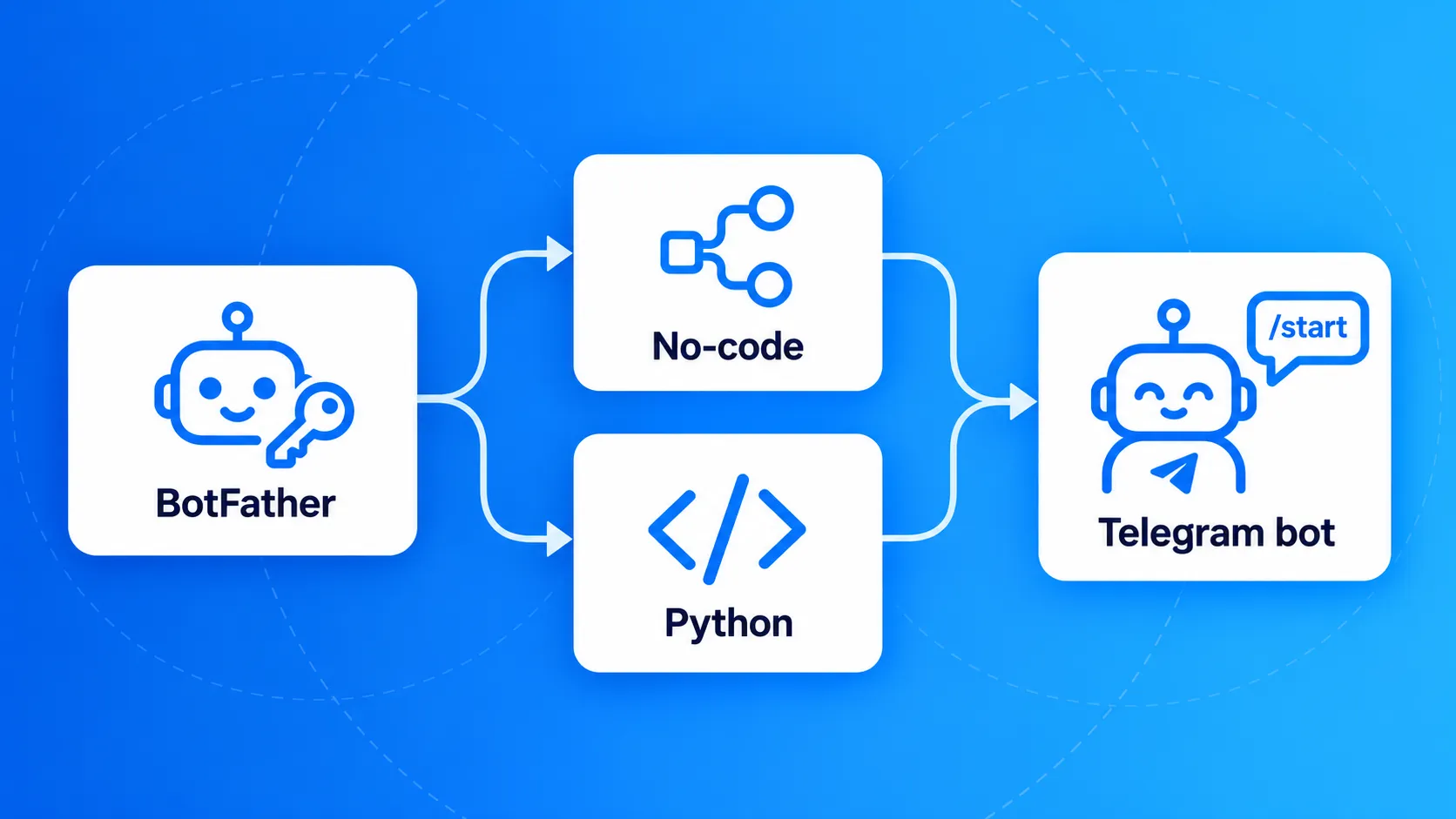
BotFather creates the account, but replies need a running workflow or program.
Test /start, /help and a text message in a private chat before deploying the bot.
What is a Telegram bot?
A Telegram bot is an application that users interact with through a Telegram account designed for automation. It can answer questions, handle commands or connect a conversation to another service, as explained in Telegram’s bot overview.
Start with one task. A help bot can show instructions for /start and /help. An echo bot repeats a message: send Hello, receive Hello. That is enough to check the connection before adding more logic.
A bot is not automatically an AI chatbot. A fixed reply needs only a rule; an AI response needs a separate model integration. A Mini App is a web interface opened inside Telegram, which is a different implementation task from the text bot built here.
Bots are also part of Telegram’s ad ecosystem: a Telegram advertising platform like AdsGram runs campaigns in channels, bots and Mini Apps.
How to create a Telegram bot
Create the account with BotFather, then choose a no-code workflow or Python to implement its behavior. BotFather is the registration step for both routes, rather than a third way to build conversation logic.
Route | What you configure | Best starting point | What you maintain |
|---|---|---|---|
BotFather | Account, profile and access token | Required registration | Ownership and account settings |
No-code | Triggers, conditions and replies | A short, predictable conversation | Workflow, credentials and service availability |
Python | Handlers and application logic | Custom rules or integrations | Code, dependencies and runtime |
Before choosing a Telegram bot builder, sketch one conversation: incoming message → condition → reply. Check that the tool supports the required message types, branching and data storage. If the conversation has many exceptions, compare how much work it takes to change those rules in a visual editor and in code.
Register with BotFather
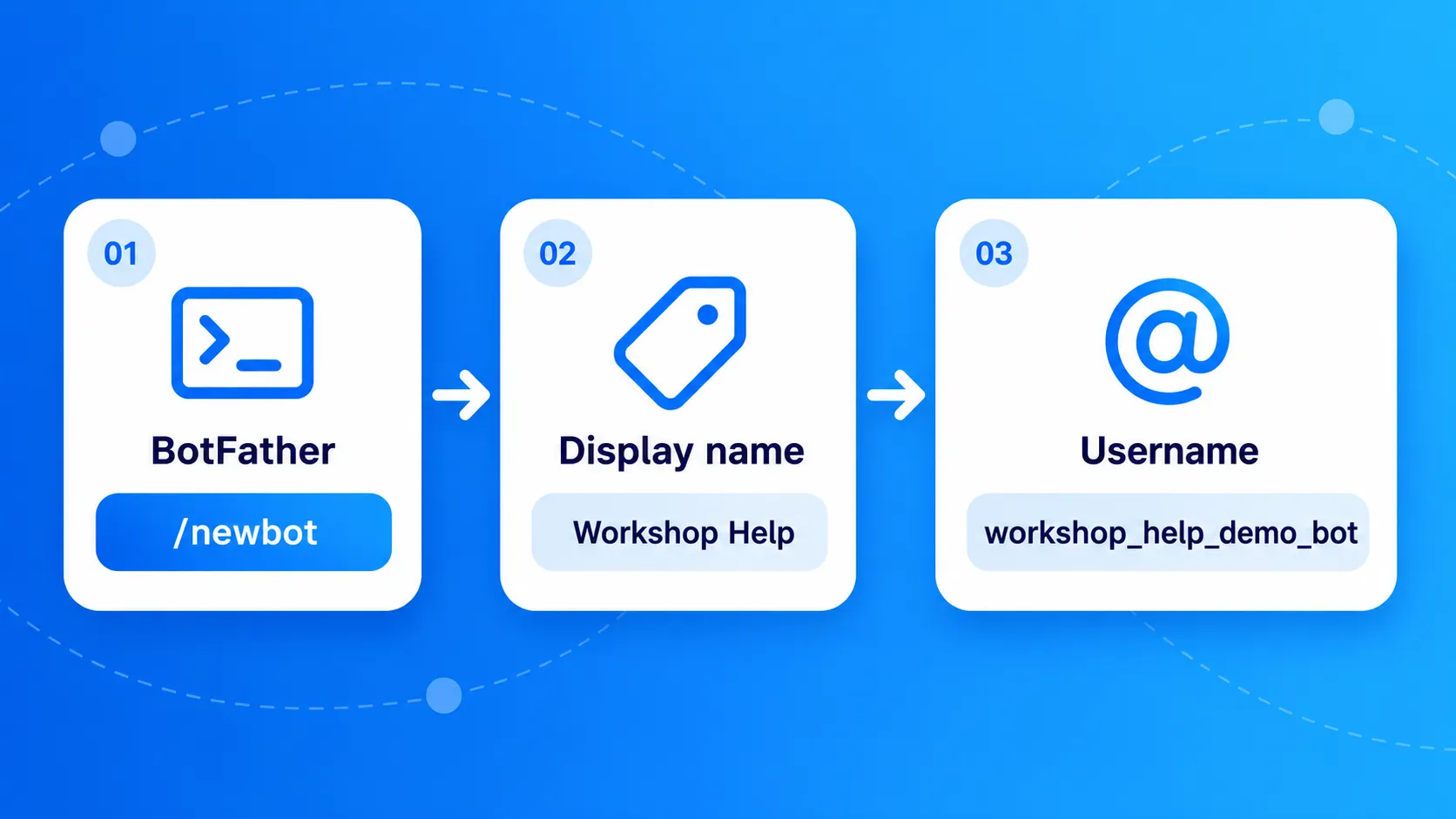
Open the official @BotFather, send /newbot, and follow its prompts for a display name and username. Telegram documents this registration flow in its first-bot tutorial.
- Open BotFather using the direct link above and press Start.
- Send
/newbot. - Enter a display name, such as
Workshop Help. - Choose an available username ending in bot, such as
workshop_help_demo_bot. - Save the access token in a password manager or secret store.
- Open the bot’s link to confirm that you can reach its chat.
The example username is illustrative; availability is not guaranteed. Use Latin letters, numbers and underscores, and follow the username requirements shown by BotFather.
An access token authenticates the bot to the Bot API. Anyone who obtains it may control the bot, so do not publish it in screenshots, repositories or shared documents. For an existing bot, open BotFather’s management options to obtain or replace its token. If it leaks, revoke it and update the connected application with the replacement.
Useful BotFather commands
These are common setup commands, not an exhaustive list. Consult Telegram’s BotFather guide and the current BotFather menu for available settings.
Command | Purpose |
|---|---|
| Register a bot |
| Manage your bots |
| Edit the display name |
| Explain what the bot does |
| Edit the short profile bio |
| Set the profile image |
| Configure the command menu |
| Generate an authentication token |
Add only commands your application actually handles. A menu entry does not implement a response: /help still needs a workflow rule or code handler.
Create a bot without coding
To create a Telegram bot without coding, connect its token to a visual workflow and define how incoming messages produce replies. Here is a minimal n8n example; n8n is a third-party automation tool, not a Telegram-owned service.
Start with an n8n instance that can receive Telegram events. Self-hosting also requires server configuration, so “no-code” does not mean “no setup.” Do not assume a hosted plan or continuous operation is free.
- Create a new workflow and add Telegram Trigger.
- Create Telegram credentials and place the BotFather token in the Access Token field, following the credential documentation.
- Select the Message event in the Telegram Trigger.
- Connect a Telegram action with resource Message and operation Send Message.
- Set Chat ID to the incoming message’s chat ID, using the expression
{{ $json.message.chat.id }}when the action directly follows the trigger. - Set Text to
Hello! Your bot is connected.The Telegram action documentation describes supported operations. - Start a test listener, then send a new private message to your bot.
- Confirm the reply and publish or activate the workflow for ongoing use.
This deliberately replies with the same sentence to every message. Next, add a condition that routes /start to a welcome message and /help to instructions. Decide what to send for unrecognized input rather than leaving the user waiting.
For self-hosted n8n, Telegram needs a public HTTPS webhook address. Testing and production can overwrite each other’s webhook registration, so use a separate test bot when changing a live workflow. See n8n’s Telegram troubleshooting guide.
Create a Telegram bot with Python
Use Python when you need explicit control over replies, validation and integrations. The example below implements /start, /help and text echoing using the asynchronous handler pattern from the python-telegram-bot example.
Prepare the project
Install a supported Python version; Python 3.12 is a suitable baseline for this example. The library documentation provides compatibility details. Create a folder and virtual environment so this project’s packages remain separate.
On macOS or Linux:
mkdir telegram-bot-demo cd telegram-bot-demopython3 -m venv .venv source .venv/bin/activate python -m pip install "python-telegram-bot==22.8"
On Windows PowerShell, use py -m venv .venv,
then .\.venv\Scripts\Activate.ps1, followed by the same installation command.
If local policy blocks activation, run .\.venv\Scripts\python.exe directly instead of changing system policy just for this tutorial.
Add the bot code
Save this as bot.py. The token comes from an environment variable, not a string committed to source control.
import os
from telegram import Update
from telegram.ext import (
Application, CommandHandler, ContextTypes,
MessageHandler, filters,
)
async def start(update: Update, context: ContextTypes.DEFAULT_TYPE):
if update.message:
await update.message.reply_text("Hello! Send text or use /help.")
async def help_command(update: Update, context: ContextTypes.DEFAULT_TYPE):
if update.message:
await update.message.reply_text("I repeat text messages. Try sending Hello.")
async def echo(update: Update, context: ContextTypes.DEFAULT_TYPE):
if update.message and update.message.text:
await update.message.reply_text(update.message.text)
def main():
token = os.environ.get("TELEGRAM_BOT_TOKEN")
if not token:
raise SystemExit("Set TELEGRAM_BOT_TOKEN before starting the bot.")
app = Application.builder().token(token).build()
app.add_handler(CommandHandler("start", start))
app.add_handler(CommandHandler("help", help_command))
app.add_handler(MessageHandler(filters.TEXT & ~filters.COMMAND, echo))
app.run_polling(allowed_updates=["message"])
if __name__ == "__main__":
main()
Run the bot
Set the secret in the same terminal session and run python bot.py. On macOS or Linux with bash or zsh, this avoids typing the token directly into a command saved in shell history:
read -s "TELEGRAM_BOT_TOKEN?Paste bot token: "zsh export TELEGRAM_BOT_TOKEN python bot.py
For bash, replace the first line with read -s -p "Paste bot token: " TELEGRAM_BOT_TOKEN.
On PowerShell 7, use $env:TELEGRAM_BOT_TOKEN = Read-Host -MaskInput 'Paste bot token', then python bot.py.
Open the private chat and test /start, /help and a short text message. Stop the process with Ctrl+C. The code is a learning baseline: it has no database, persistent conversation state or production monitoring.
Keep the bot running
Run the application on an always-on host, or keep the no-code workflow active in its hosting environment. Closing the local Python process stops its replies.
Long polling means your program requests incoming events from Telegram. A webhook means Telegram sends events to your server. The Bot API reference describes these mutually exclusive update mechanisms. The Python example uses polling, while the n8n trigger uses a webhook.
Before moving from an experiment to a shared service:
- Keep the token in the host’s secret settings and exclude .venv and secret files from Git.
- Run one polling instance per bot token; avoid another application consuming the same bot’s events.
- Configure automatic restart and inspect failures without logging secrets or unnecessary message content.
- Store required conversation state outside process memory.
- Test a restart and verify that the bot returns to service.
If the project later needs a web interface, plan it separately. AdsGram’s guide to Telegram Mini App development mistakes offers adjacent reading for that stage.
Fix common setup errors
When a bot does not reply, check its running application and update delivery before changing its profile. Use this order to separate an account problem from a workflow or code problem.
- No reply after registration: connect and start the workflow or program; BotFather alone does not run it.
- Missing environment variable: set
TELEGRAM_BOT_TOKENin the same shell or hosting service that starts Python. - Authentication error: check for whitespace, an outdated token or the wrong bot’s credentials.
- Polling conflict: stop duplicate processes. If switching from a webhook service, intentionally remove its webhook using
deleteWebhookbefore starting polling; see the Telegram update FAQ. - Private chat works, group does not: check privacy mode and test a command addressed to the bot, such as
/help@your_bot_username. - Menu command does nothing: implement a handler for that command; adding it in BotFather only makes it visible.
FAQ
You can start locally without a hosting account. The questions below explain what you need for registration and continuous operation.
Can I create a Telegram bot for free?
Telegram’s basic bot platform is free to use, and you can develop a small Python bot on your own computer. Separate expenses may arise from hosting, a no-code service or external APIs. For a first experiment, run a local text-reply bot and evaluate any hosting or service charges before moving it to continuous operation.
Is BotFather safe?
Use the official account reached through Telegram’s documentation or the direct @BotFather link in this guide. BotFather is Telegram’s bot management tool. The main setup risks are impersonator accounts and exposed access tokens. Keep the token private and provide it only to the application or service you intentionally trust to operate the bot.
How do I get a Telegram bot token from BotFather?
Send /newbot to the official BotFather and complete the name and username prompts. BotFather then provides the token for that bot. For an existing account, use its management options to generate a token. Store it securely, and update your application credentials whenever you revoke or replace the previous token.
Do I need Python to make a Telegram bot?
No. A visual workflow can implement a basic reply without Python, while other programming languages can also call the Bot API. Choose the route by the behavior you need and what you can maintain. A short decision tree suits a visual tool; more complex validation and integrations may justify writing your own application.
Why does my bot stop when I close the terminal?
In this example, the terminal runs the process that receives messages and sends replies. When the process ends, that logic stops, although the bot account still exists. For continuous use, deploy the program to an always-on environment with restart handling, or keep a hosted workflow active and check its execution logs when replies fail.